
Connected apps
Some apps you use, like a CRM or a shop builder, can connect to your Splashify Pro Email account and send email or read reports for you. A connected app can do only what you allowed. You can see every connected app and remove any of them at any time.
Connect an app
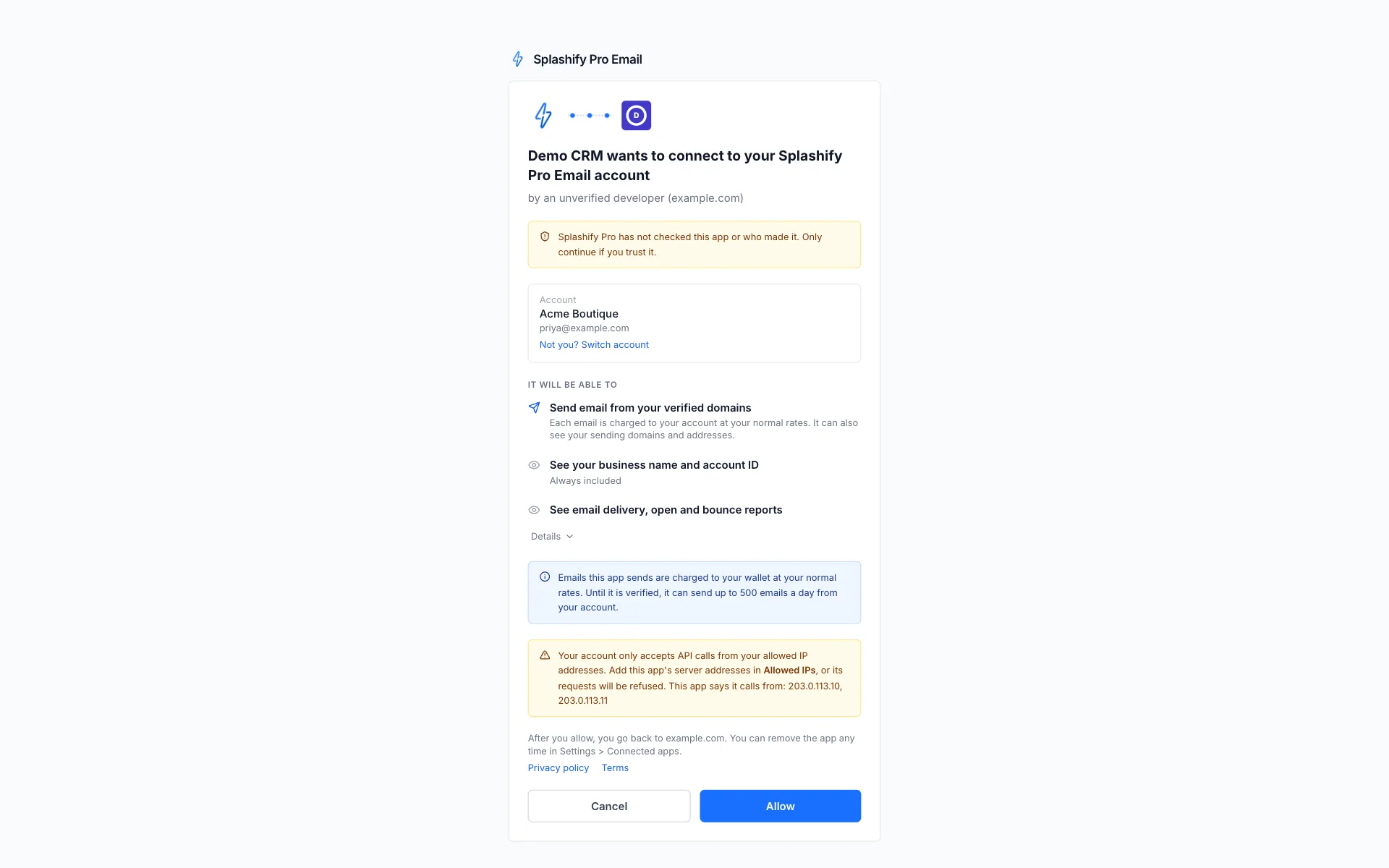
You start in the other app, usually with a button like Connect Splashify Pro. It opens a page on email.splashifypro.com that shows:
- the app's name and logo, and who made it. A verified app has a green Verified badge and the company that made it; any other app shows by an unverified developer and a notice that we have not checked it;
- the Splashify Pro Email account it will connect to;
- what the app will be able to do, in plain words;
- how its emails are charged;
- where you go back to after you allow.
Click Allow to connect, or Cancel. You go back to the other app either way: after Allow you first see Connected, and if the page does not take you back by itself, click Continue.
Who can connect apps
Only you, signed in to the panel, can connect or remove apps. An API key cannot, and neither can our support team when they look at your account.
What it costs
Every email a connected app sends is charged like the emails you send yourself: from your wallet at your normal rates, or to your account for postpaid accounts. An app that is not verified can send up to 500 emails a day from your account and cannot use bulk sending. After you allow an app, we email you which app was connected and what it can do. If you did not connect it, remove it at once.
Allowed IPs
If your account only accepts API calls from its allowed IP addresses, a connected app's requests are refused unless they come from one of them. The connect page shows the addresses the app says it uses; add them in Allowed IPs.
See your connected apps
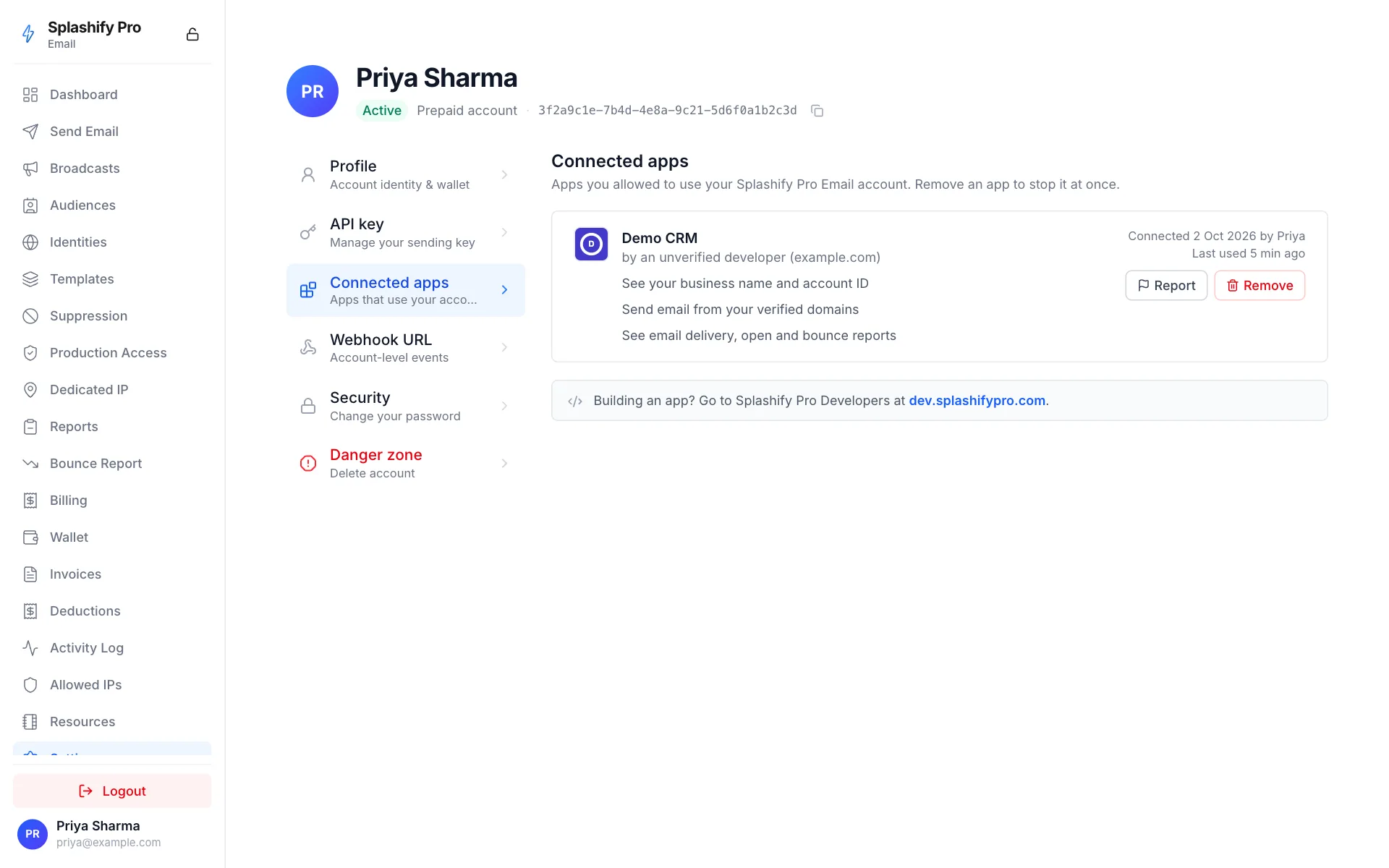
Open Settings and click Connected apps. For each app you see what it can do, when and by whom it was connected, and when it was last used.
Connecting and removing apps also show in your Activity logs.
Remove an app
Click Remove on the app's row, then Remove again to confirm. The app loses access at once. Anything it already sent stays in your account.
Report an app
If an app does something you did not expect, click Report on the app's row, tell us what went wrong and click Send report. We look into every report. Remove the app too if you do not want it to keep working.
Build your own app
Developers build apps at dev.splashifypro.com. See Connected apps (OAuth).